


This guide will walk you through the steps to integrate Cohere's API with a Vercel project to create a text completion app. We'll use the Vercel AI SDK and Cohere's API to generate text completions based on user input.
Before you begin, make sure you have the following:
- A Vercel project set up.
- Node.js and npm (or pnpm) installed.
Start by creating a new Next.js app and installing the required dependencies:
To use Cohere's API, you'll need an API key. If you don't have one, sign up for an account on the Cohere website to obtain your API key. You can start with your trial key until you're ready to go to production.
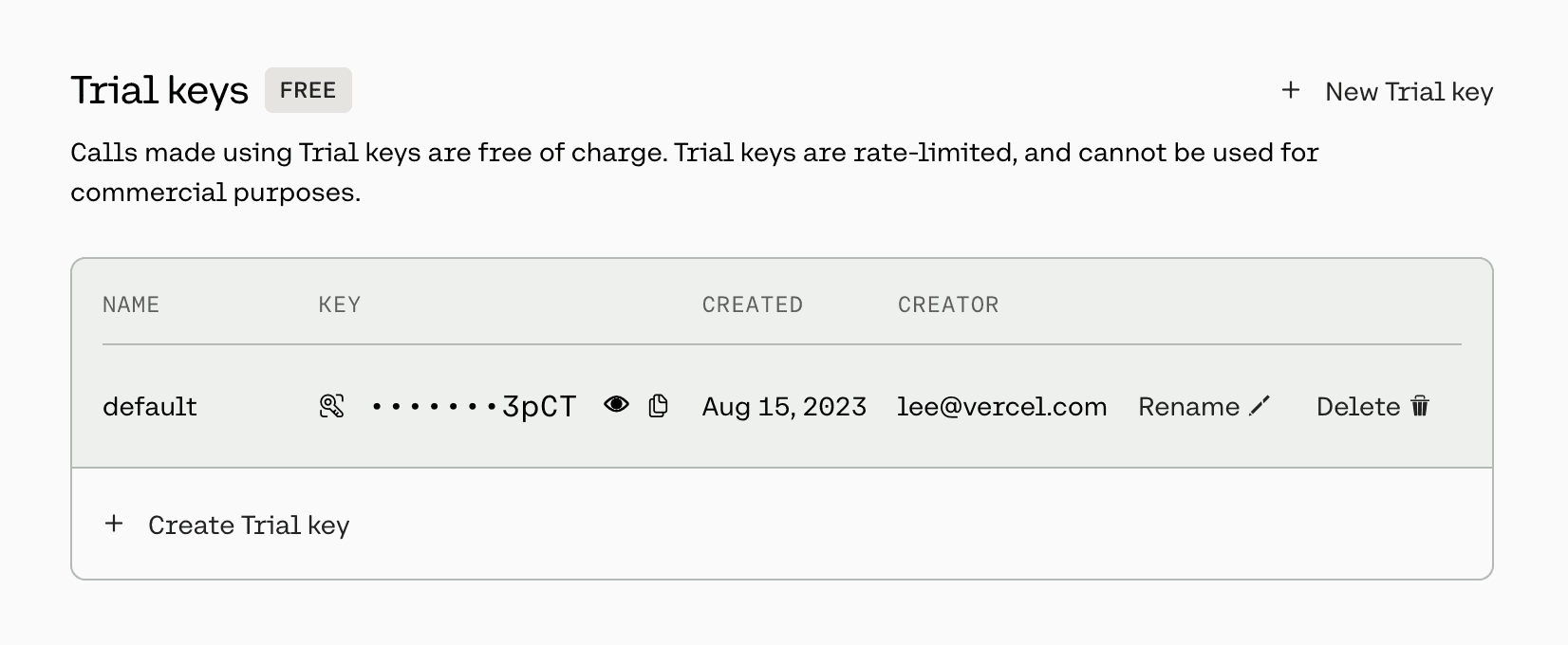
Once you have the API key, add it to your project's environment variables in the .env.local file:
Next, we'll create a Route Handler in the Next.js app that will interact with Cohere's API to generate text completions.
Create a new file at app/api/completion/route.ts and add the following code:
Now, let's create the UI components that will allow users to interact with the text completion feature.
Update the existing app/page.tsx file with the following code:
Finally, we’ll be deploying the repo to Vercel.
- First, create a new GitHub repository and push your local changes.
- Deploy it to Vercel. Ensure you add all Environment Variables that you configured earlier to Vercel during the import process.
Congratulations! You've successfully integrated Cohere's API with a Vercel project to create a text completion app. You can further customize the app and explore other features of Cohere's API to enhance the user experience.